See It in Action
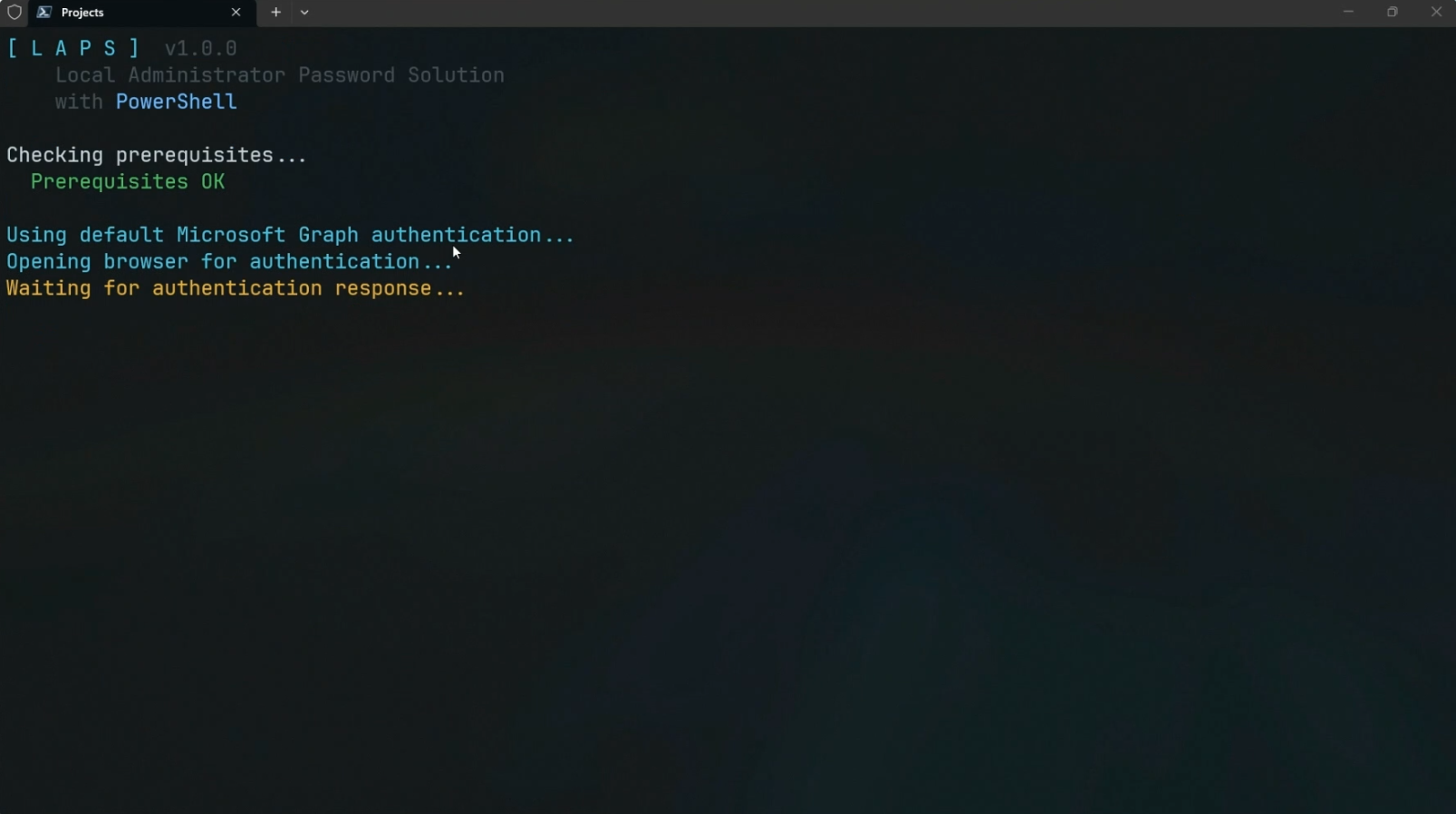
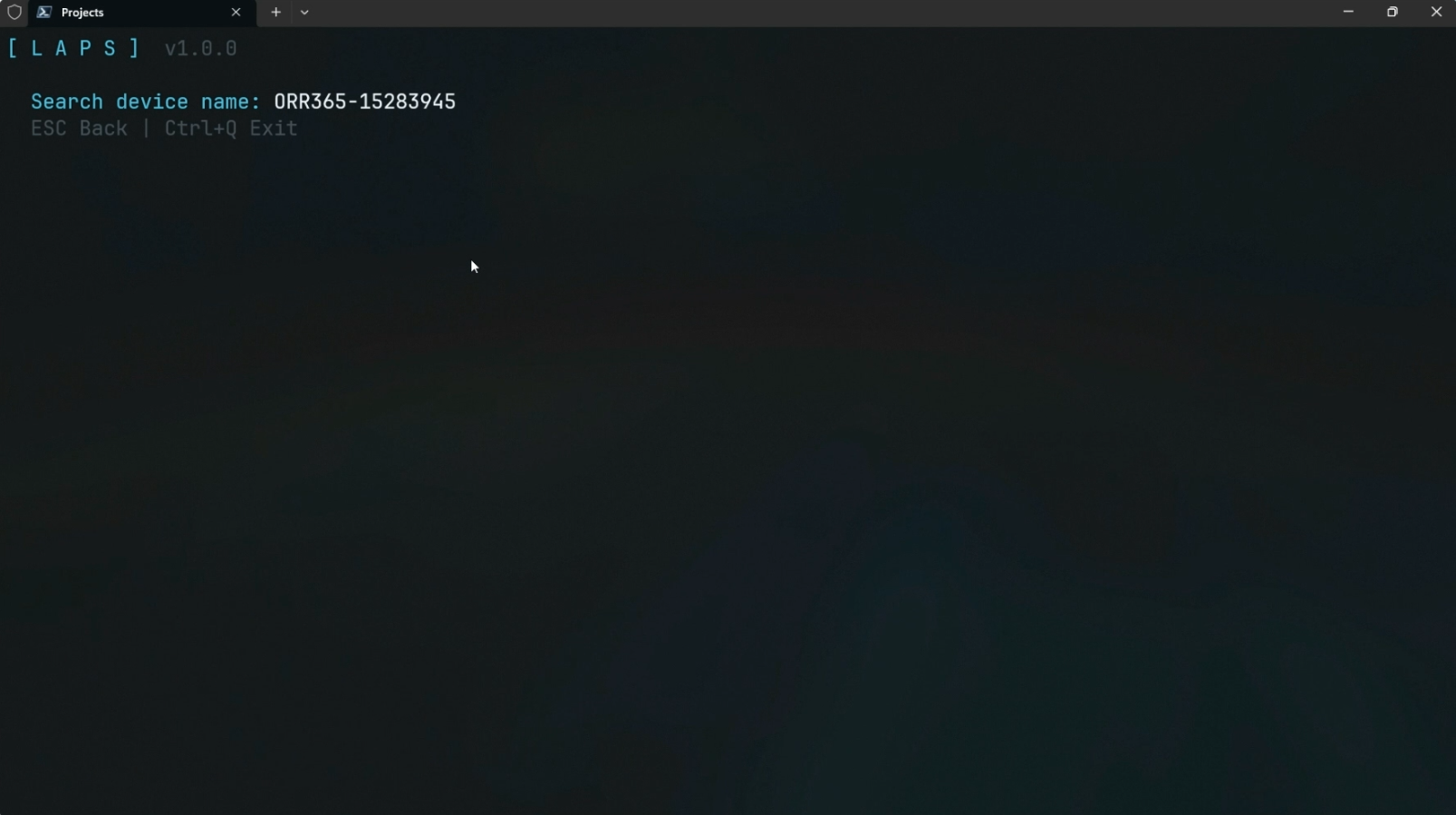
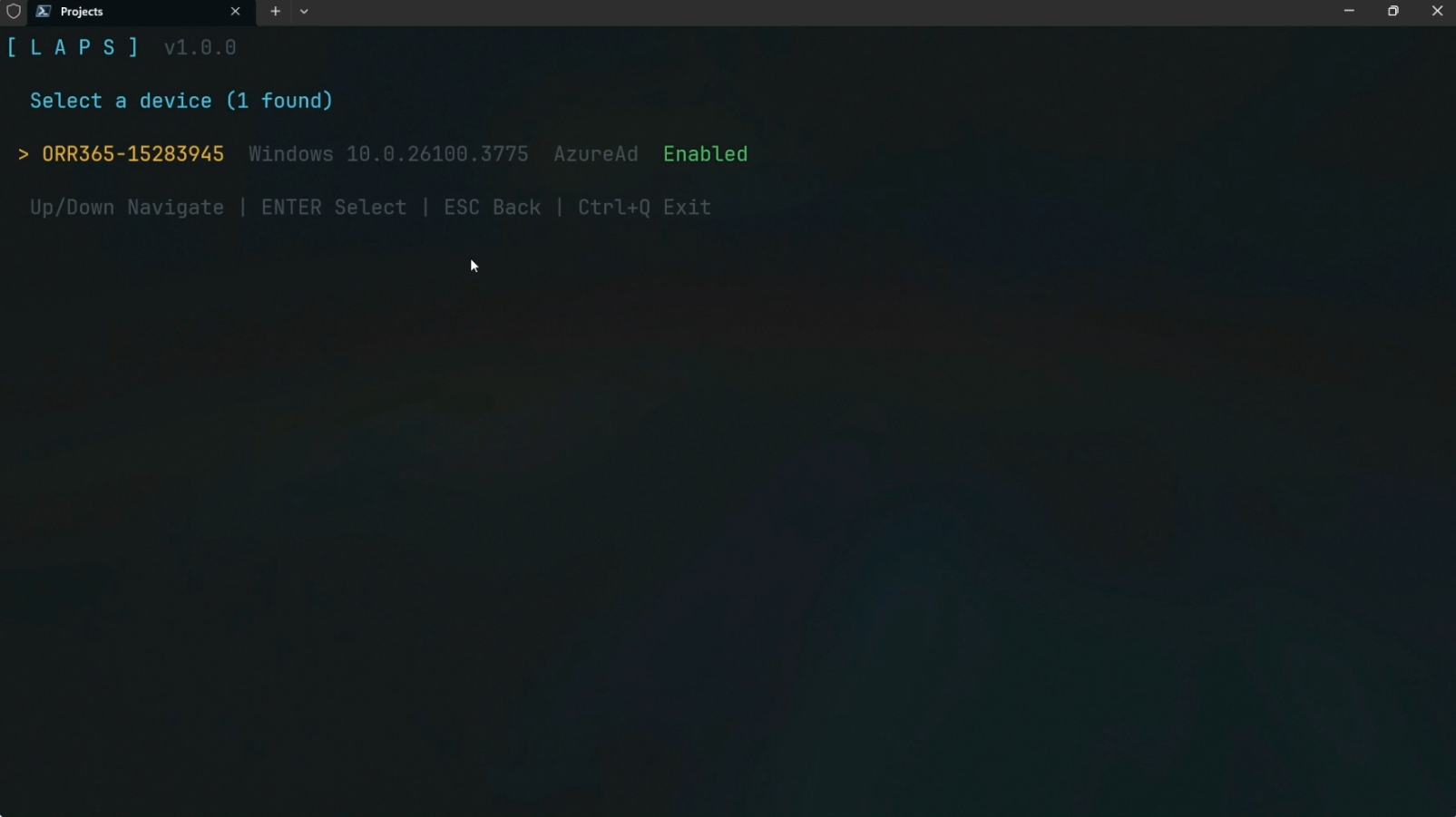
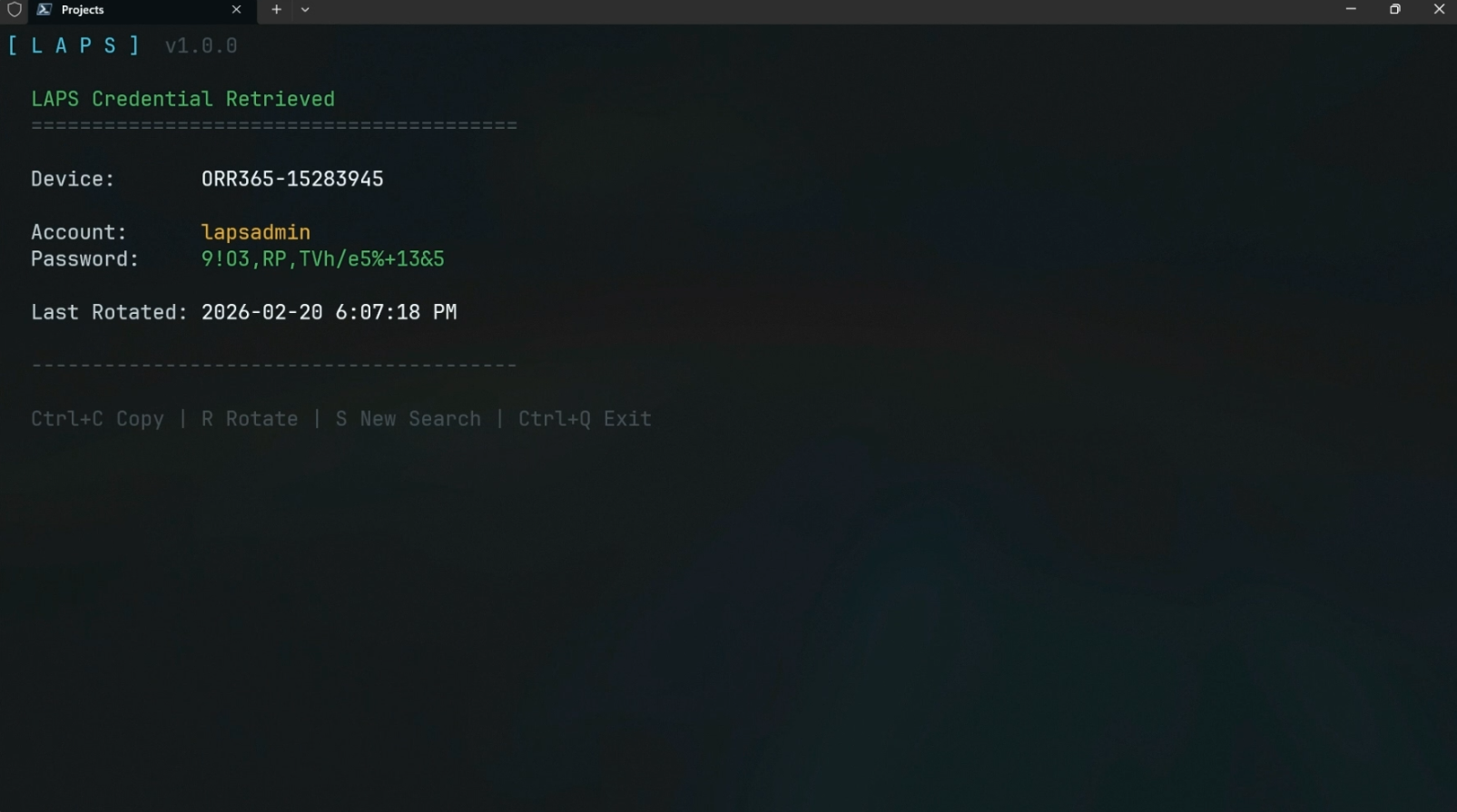
Full workflow — authentication, device search, password retrieval, and clipboard copy.

Search devices, view credentials, copy to clipboard, rotate on demand — one PowerShell command.
Everything you need to manage LAPS passwords, in one tool.
Search Entra ID devices by name with real-time results. Arrow-key navigation through matching devices with OS, trust type, and status details.
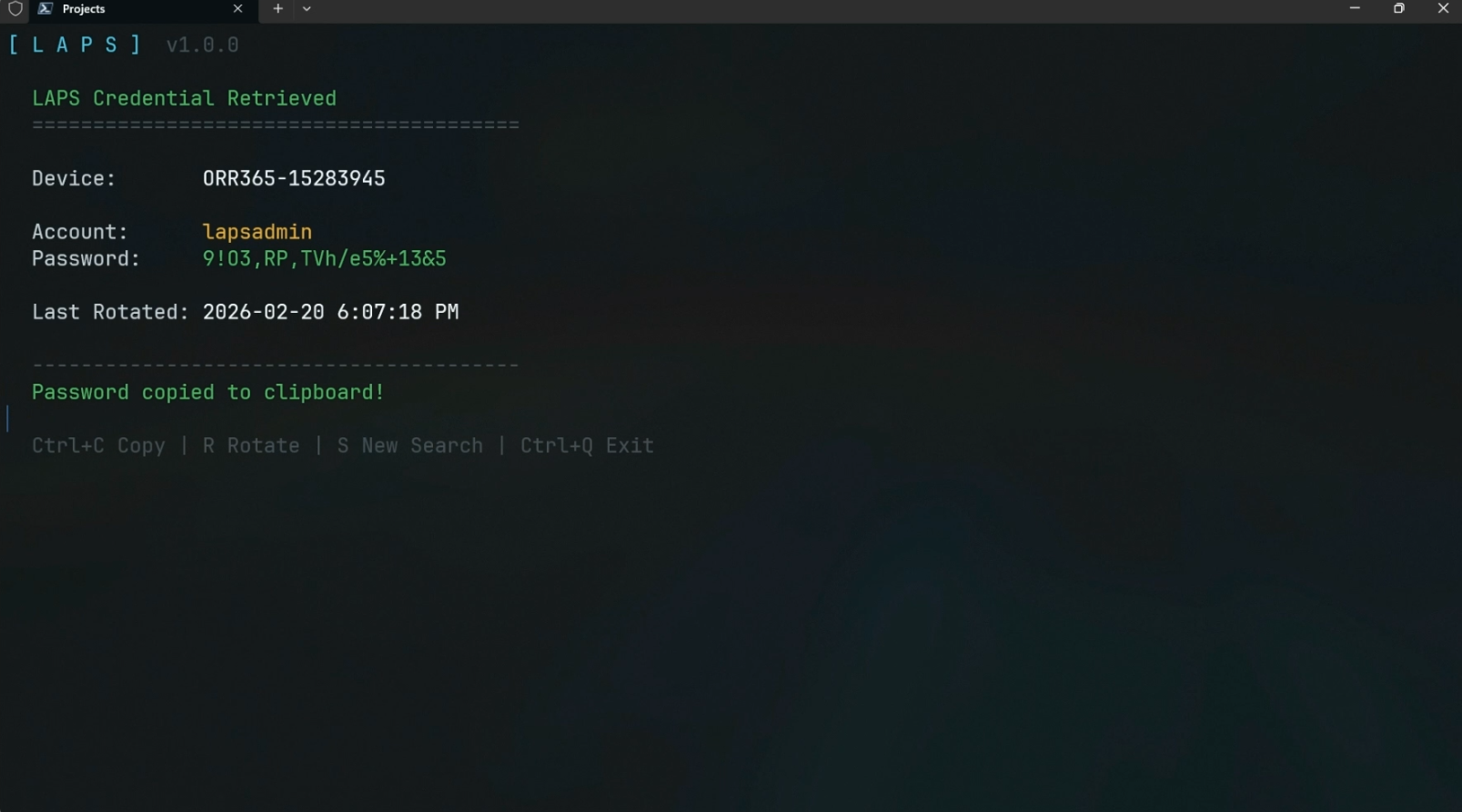
Retrieve LAPS local admin credentials via Microsoft Graph. Displays account name, decoded password, and last rotation timestamp.
Copy passwords directly to clipboard with Ctrl+C from the result screen. Visual confirmation so you know it worked.
Trigger immediate LAPS password rotation for Intune-managed devices with a confirmation prompt. New password appears after device check-in.
Browser-based MSAL authentication on every launch. JWT scope validation warns immediately if required permissions are missing.
Works on Windows, macOS, and Linux. Platform-aware keyboard shortcuts and terminal handling across all environments.
Navigate with arrow keys, dynamic control bar that follows your actions, and inline prompts. Clean, focused terminal experience.
Auto-installs required MSAL libraries on first run. No app registration needed to get started, or bring your own for full control.
Optionally configure a dedicated app registration with Configure-LAPS. Credentials persist as environment variables across sessions.
Full workflow — authentication, device search, password retrieval, and clipboard copy.
The interactive console experience.
Up and running in two commands.
Navigate the TUI with ease.
| Shortcut | Action |
|---|---|
| ↑ ↓ | Navigate device list |
| Enter | Select / Confirm |
| Ctrl+C | Copy password to clipboard |
| R | Rotate password |
| S | New search |
| Esc | Go back |
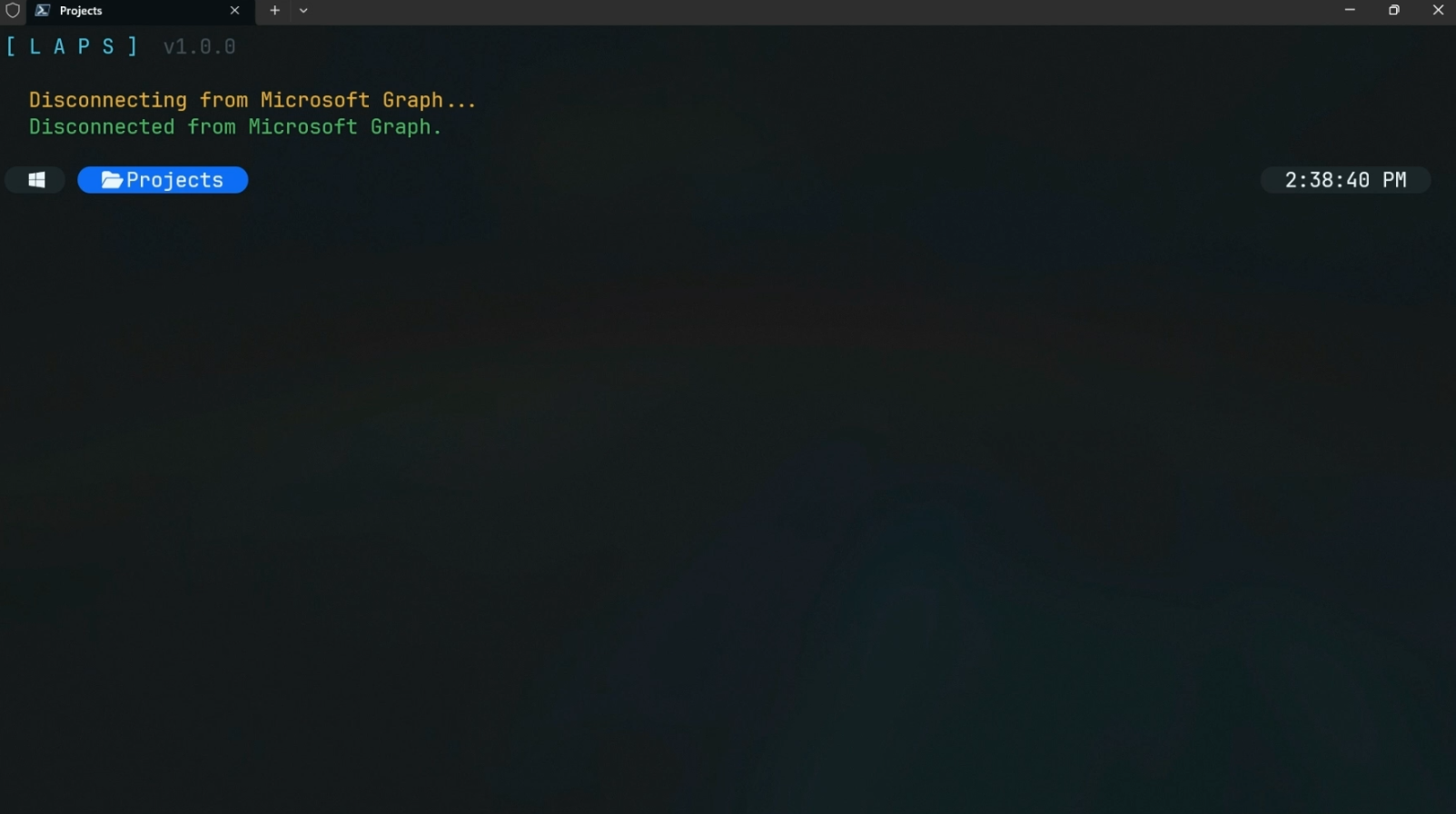
| Ctrl+Q | Disconnect & exit |
Required delegated permissions for your app registration.